




This wikiHow teaches you how to update your GroupMe profile photo on an iPhone or iPad.
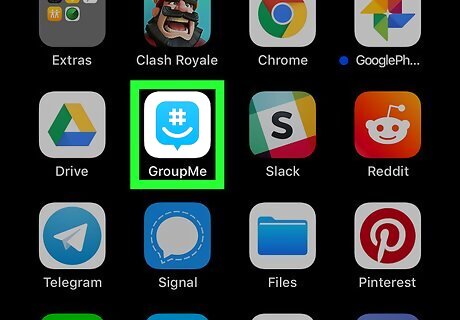
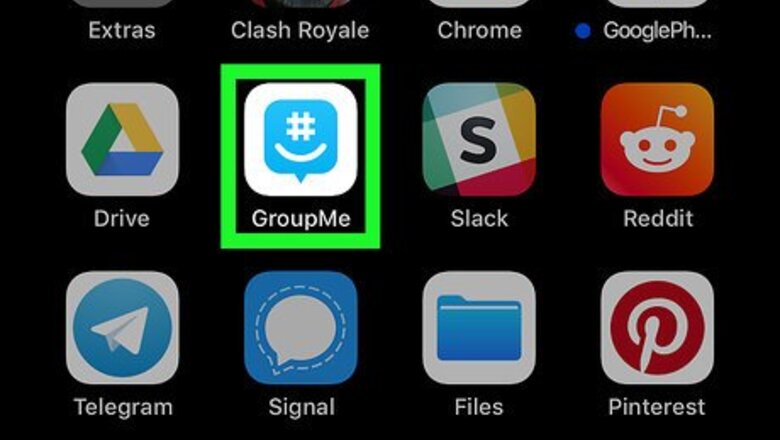
Open GroupMe on your iPhone or iPad. It’s a white icon containing a blue smiling chat bubble. You’ll usually find it on your home screen.
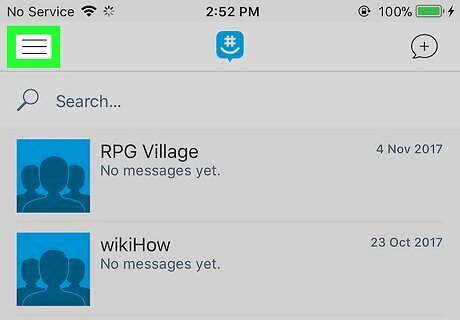
Tap ≡. It’s at the top-left corner of the screen. A menu will expand.

Tap your name. It’s at the top of the menu. This opens your profile page.

Tap your profile photo. If you don’t have one yet, it’ll be a placeholder image of the outline of a person.
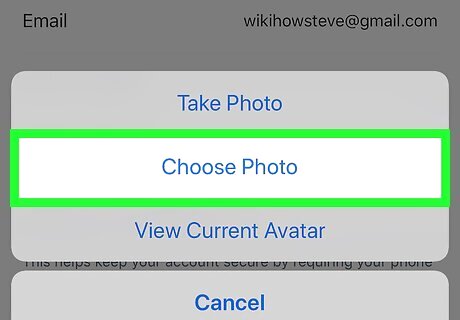
Tap Choose Photo. This opens the gallery. If you want to take a new photo using the GroupMe app, tap Take Photo instead to open the camera, take your photo, then tap Use Photo.

Tap the photo you want to use. This opens a larger preview.

Tap Choose. It’s at the bottom-right corner of the screen. Your new profile photo is now set.









Comments
0 comment