



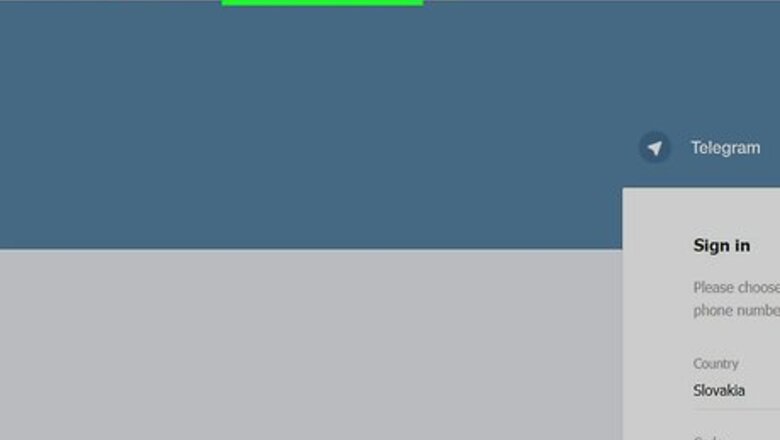

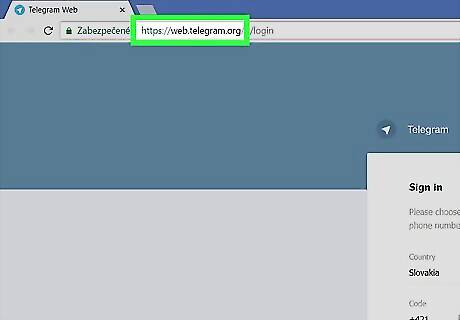
Navigate to https://web.telegram.org/ in a web browser. Even if you use the Telegram desktop program on your computer, you’ll still need to sign in to the web version of Telegram.
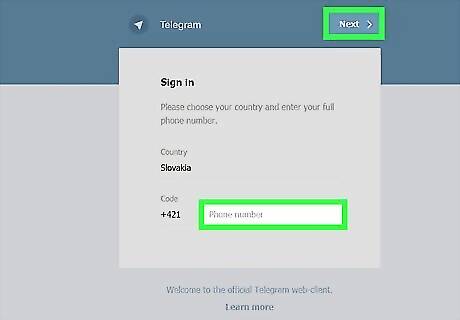
Enter your phone number and click Next. Telegram will send a confirmation code to your phone number via SMS.
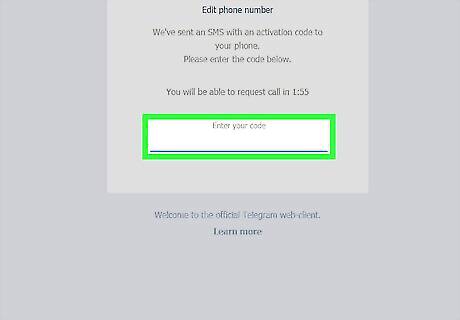
Enter the confirmation code. The site should automatically accept the code once you type it correctly. If it doesn’t, click Next at the top-right corner of the screen to continue.
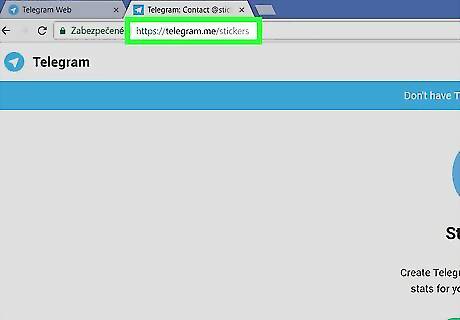
Navigate to https://telegram.me/stickers in the same web browser. This brings to you to the home page of the Telegram Stickers bot.
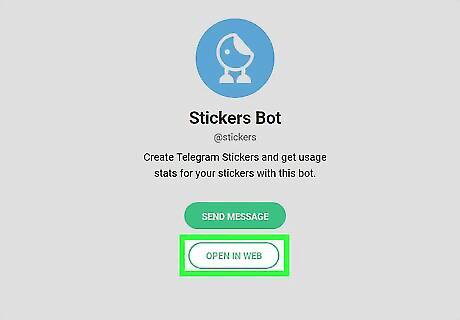
Click OPEN IN WEB. This opens a conversation with the Stickers bot in Telegram.
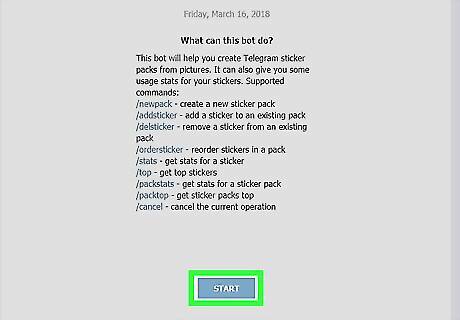
Click Start. It’s at the bottom of the conversation. A list of commands for the Stickers bot will appear.
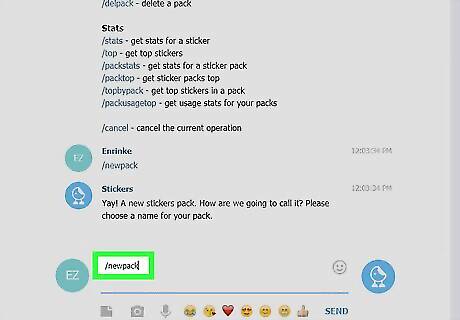
Type /newpack and press ↵ Enter or ⏎ Return. The Stickers bot will ask for a name for your new sticker pack. A sticker pack is a collection of stickers. Even if you only want to create one sticker, you’ll still need to create a pack.
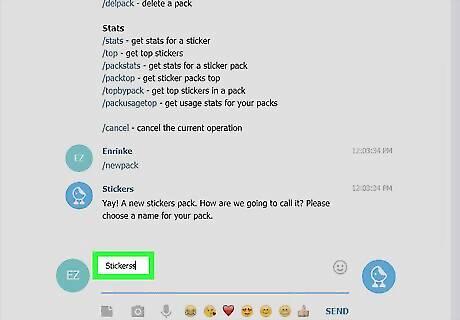
Type a name and press ↵ Enter or ⏎ Return. Now the bot will ask you to upload your image.
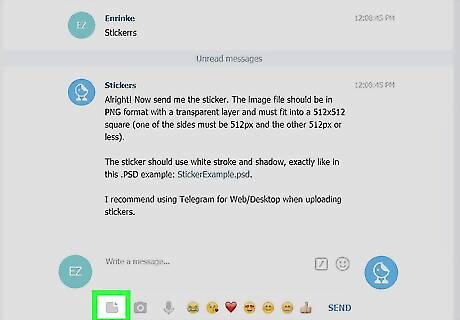
Click the file upload icon. It looks like a sheet of paper with a corner turned down. It’s right beneath the message box.
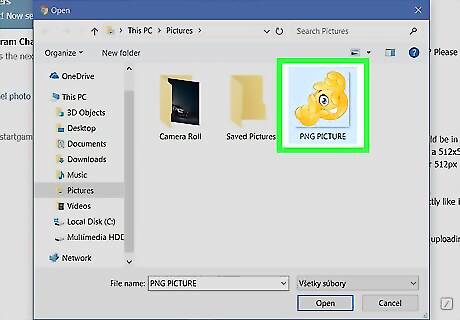
Click the image you want to turn into a sticker. The image should be in PNG format, and it must fit into a 512 x 512 square.
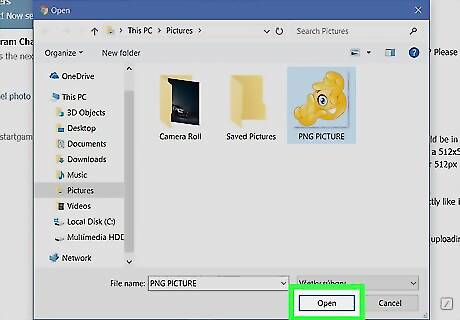
Click Open. The image will upload to Telegram.
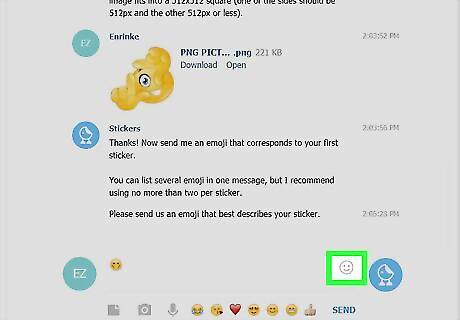
Click an emoji and press ↵ Enter or ⏎ Return. This emoji should correspond with your sticker. For example, if the sticker is a happy image, click the thumbs-up or smiley face.
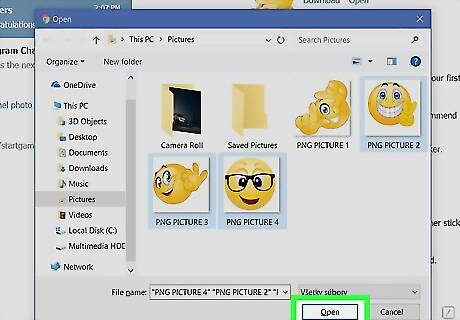
Upload additional stickers for the pack. If you only want to create one sticker, just move to the next step. Otherwise, click the file upload icon to select another image, then choose an associated emoji.
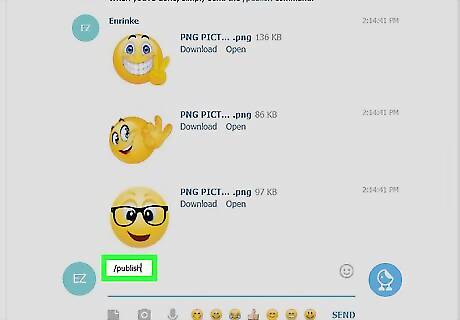
Type /publish.
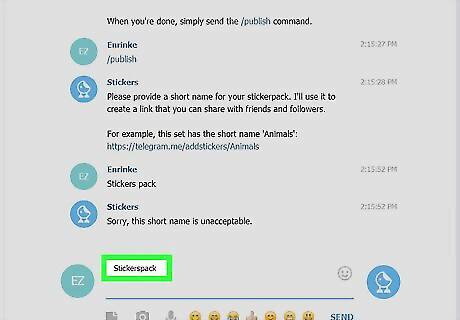
Enter a short name for the sticker pack and press ↵ Enter or ⏎ Return. This is the name that will appear in links to your sticker pack. For example, if your sticker pack is called Test, you’ll be able to provide friends the link https://t.me/addstickers/Test so they can use the stickers in the pack. To share the sticker pack now, click Share at the bottom of the screen, then choose a sharing method.
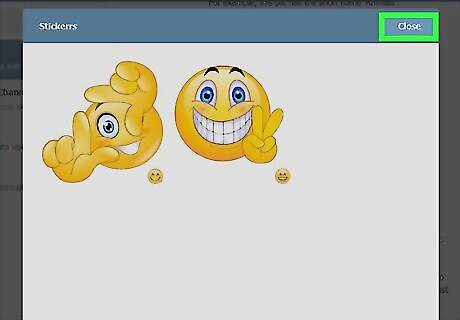
Click Close. Your stickers are now ready to use.









Comments
0 comment