




Installing Old School RuneScape
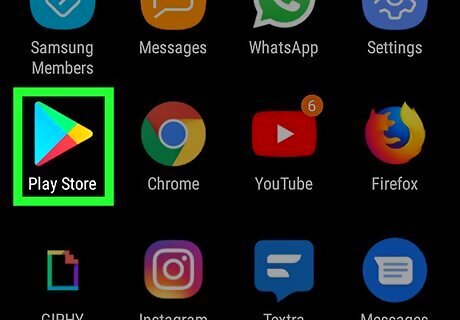
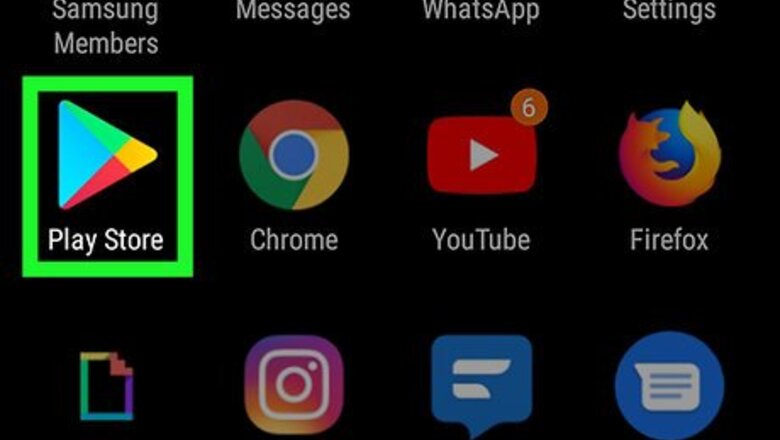
Open the Google Play Store Android Google Play app. You can find this app on your home screen, in the app drawer, or by searching. You will be presented with the Home screen of the Play Store and lists of apps based on your activity.
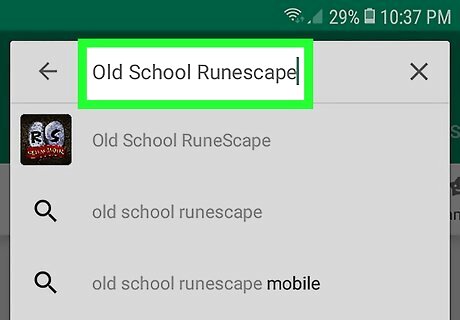
Type in Old School RuneScape. The search box is along the top of your screen. The application author is Jagex Game Studio.
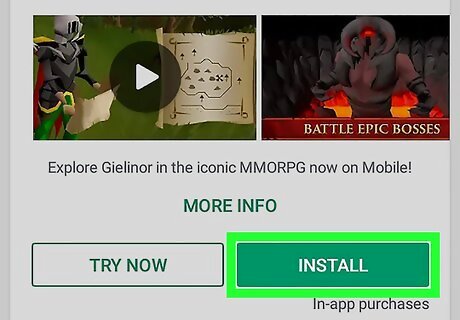
Tap the green Install button. Old School RuneScape will be added to your homescreen and app drawer.
Creating an Account with Google
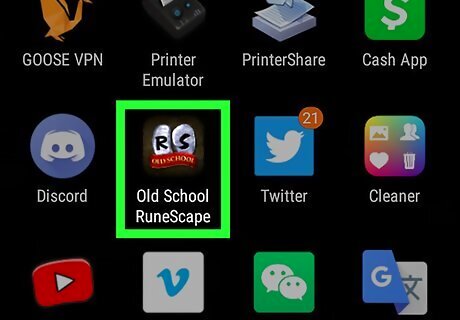
Open the Old School RuneScape app. This looks like the letters ‘R’ and ‘S’ on stones with a red banner beneath that reads, “Old School.” You can find this app on your home screen, in the app drawer, or by searching. You can log in if you have a RuneScape account and skip this method on creating an account.
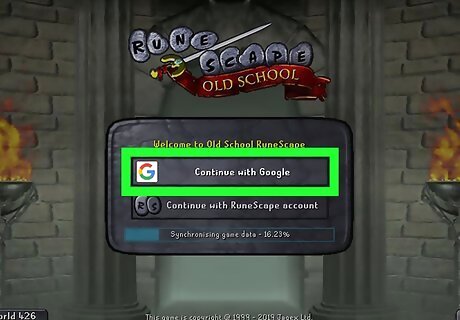
Tap Continue with Google. The Terms and Conditions and Privacy Policies will load. Read them before tapping Accept.
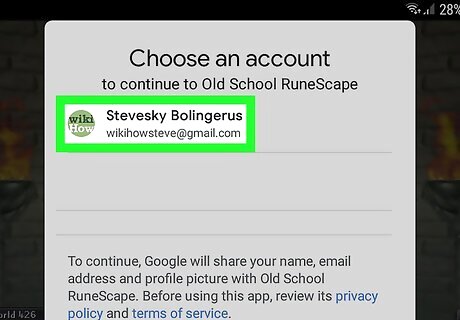
Tap a Google account to continue. A request to access your Google account information will pop up. Tap the blue Allow button.
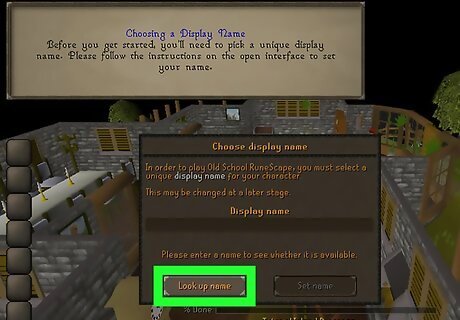
Tap Look up name. You have to have a unique display name, and this will check if the name you want is available. Your keyboard will slide up and you can type in a name. If the name isn’t available, suggestions for your name will appear. You should most likely use letters and numbers in your display name. Tap Look up name to continue finding an available display name. When a display name is useable, you will see “available” light up in green and you can continue.
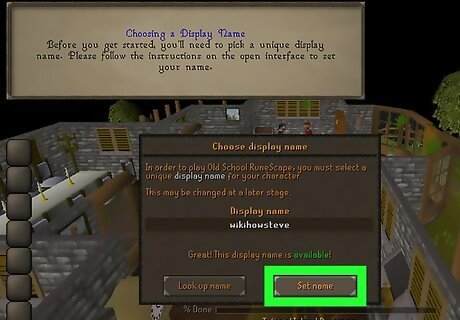
Tap Set name.
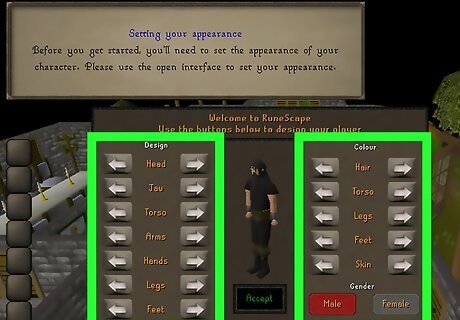
Customize your avatar. By tapping the arrows, you can change selections for hair, head, jaw, skin, torso, etc. You can tap Male or Female to change the gender of your avatar. You can see a preview of your avatar in the middle of the screen.
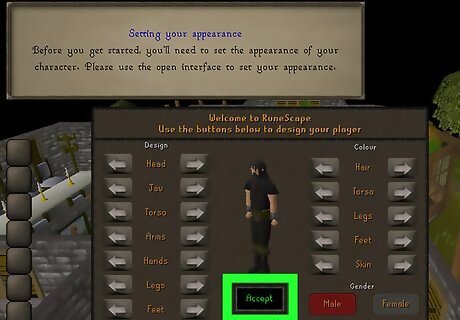
Tap Accept. Your avatar will appear in the RuneScape world and you are ready to start your adventure.
Creating a RuneScape Account
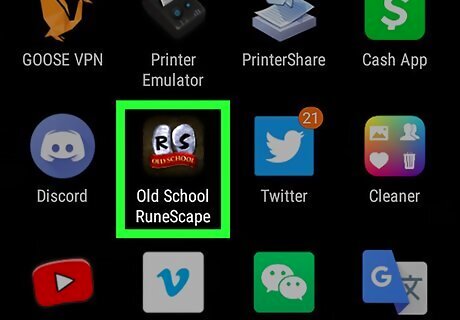
Open the Old School RuneScape app. This looks like the letters ‘R’ and ‘S’ on stones with a red banner beneath that reads, “Old School.” You can find this app on your home screen, in the app drawer, or by searching. You can log in if you have a RuneScape account and skip this method on creating an account.
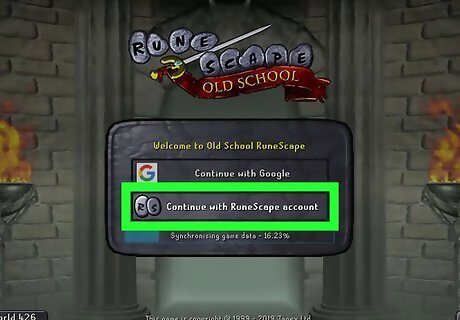
Tap Continue with RuneScape account.
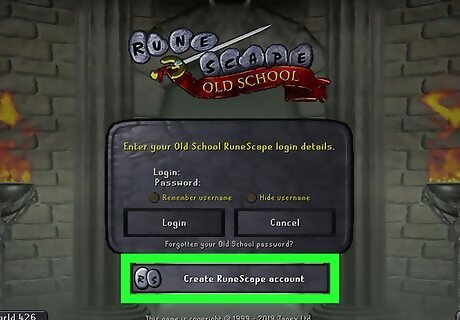
Tap Create RuneScape account. You will be redirected to a website to complete account setup.
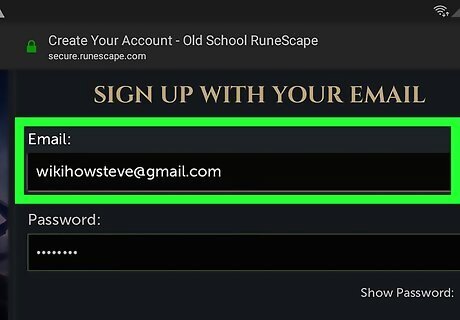
Tap the text field below “Email.” Your keyboard will appear and you can type in your email.
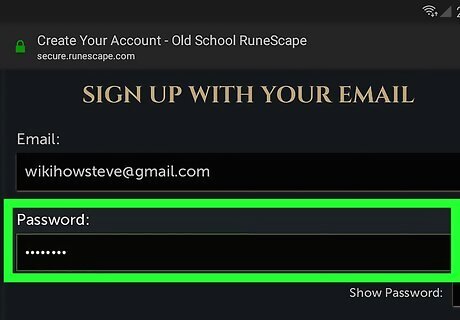
Tap the text field below “Password.” Your keyboard will appear and you can type in your password. You can select the box Android 7 Checkbox to show your password.
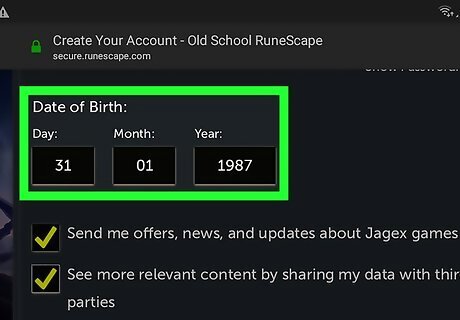
Enter your date of birth with the provided boxes. Tapping the text fields under “Day”, “Month”, and “Year” will prompt your keyboard to appear. You will need to enter in 2 digits for the day and month, and 4 digits for the year. For example, if your birthday is March 7, 1990, you will need to enter 07 under “Day”, 03 under “Month”, and 1990 under “Year”.
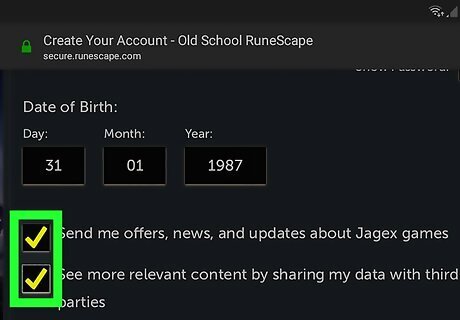
Select boxes Android 7 Checkbox if you agree (optional).
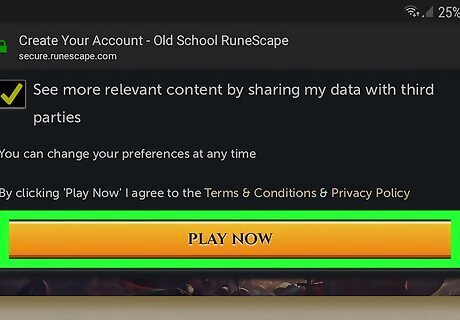
Tap the yellow Play Now button.
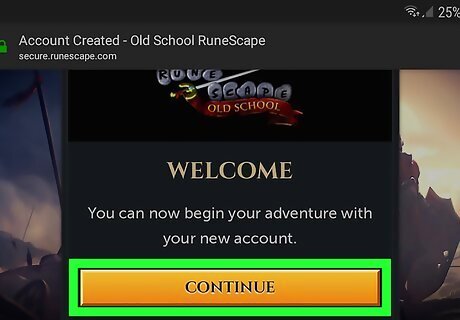
Tap the yellow Continue button. You will be redirected to the app where you can sign in with your RuneScape account.
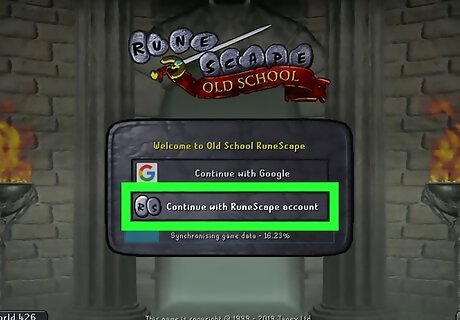
Tap Continue with RuneScape account.
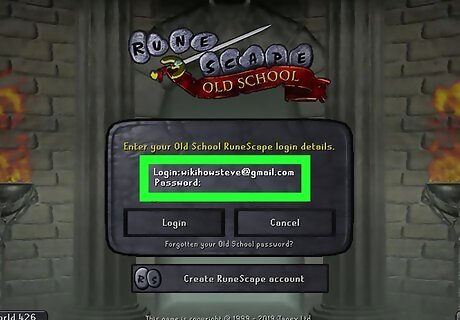
Login with your RuneScape account information.
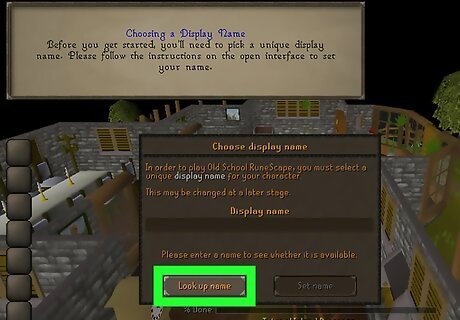
Tap Look up name. You have to have a unique display name, and this will check if the name you want is available. Your keyboard will slide up and you can type in a name. If the name isn’t available, suggestions for your name will appear. You should most likely use letters and numbers in your display name. Tap Look up name to continue finding an available display name. When a display name is useable, you will see “available” light up in green and you can continue.
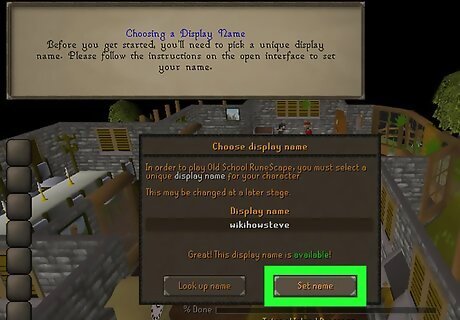
Tap Set name.
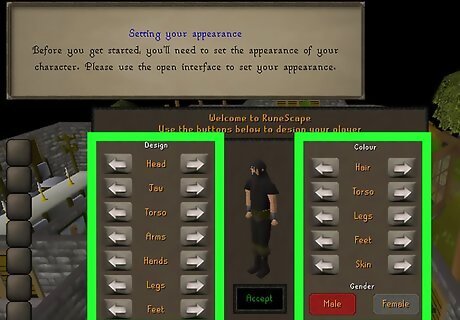
Customize your avatar. By tapping the arrows, you can change selections for hair, head, jaw, skin, torso, etc. You can tap Male or Female to change the gender of your avatar. You can see a preview of your avatar in the middle of the screen.
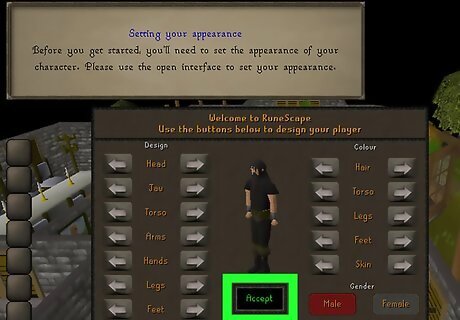
Tap Accept. Your avatar will appear in the RuneScape world and you are ready to start your adventure.
Starting the Game
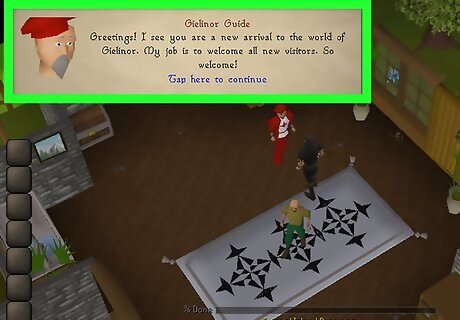
Practice moving your character on Tutorial Island. It's a good idea to watch the tutorial to better understand the game dynamics.
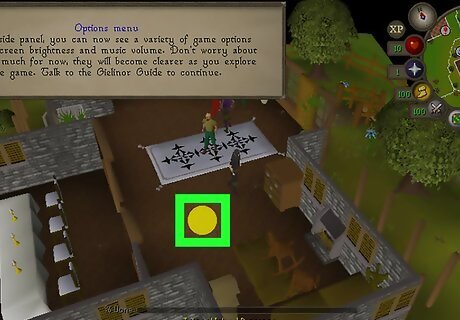
Move your avatar by tapping the ground. Tap on the spot where you want your character to go.
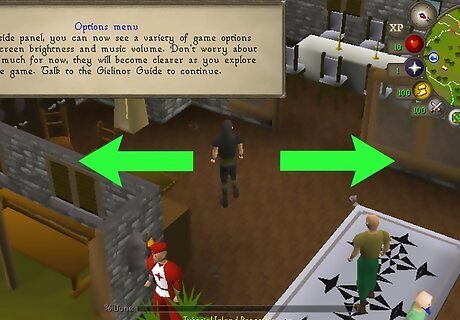
Move your camera by swiping the screen. Look around to spot items and other characters.
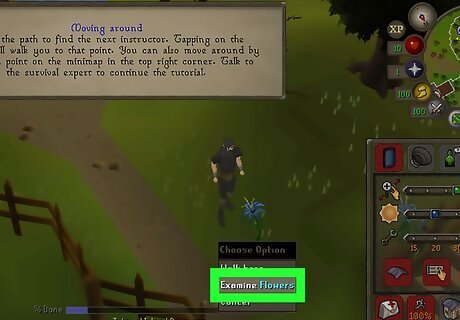
Interact with objects by touching and holding them. Look for objects on Tutorial island to get used to picking them up.
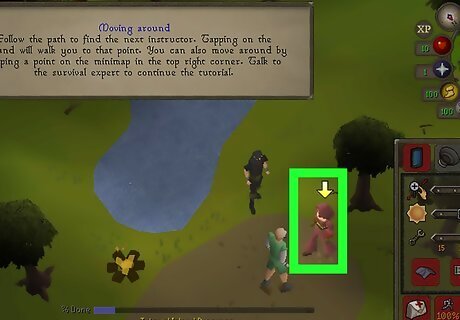
Find characters on the island and talk to them.
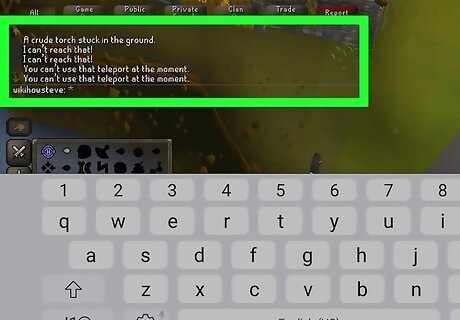
Tap the chat box to talk with other players. When you tap the chat box, your keyboard should pop up, and you'll be able to send messages to other players.
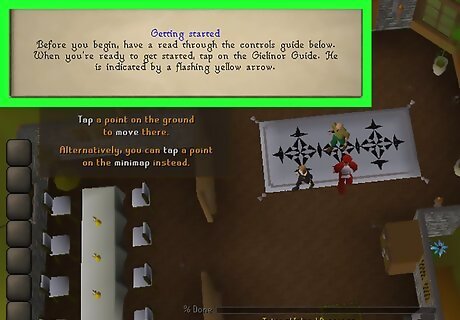
Follow the prompts in the game to start playing. Once you've mastered how to move on the tutorial, follow the game prompts to get started.









Comments
0 comment